Monday, February 04, 2008

.NET in Pro/Toolkit

Summary: Can we use .NET to develop Pro/Toolkit applications for Pro/Engineer?

I have seen numerous articles providing tutorials (heres one and another one) on how to develop Pro/Toolkit applications using Visual C++ (either 2003 or 2005). Now the articles refer to developing Pro/Toolkit applications using Visual C++.NET which I think is misleading since the .NET portion refers (I believe) to Managed Visual C++ code while the articles refer to Unmanaged Visual C++ code.

So this begs the question: how does one develop Pro/Toolkit applications using Visual C++.NET Managed Code and is this even possible?

The short answer is NO - YOU CANNOT DEVELOP Pro/Toolkit APPLICATIONS USING VISUAL C++.NET MANAGED CODE (or C# or Visual Basic.NET).

The long answer is PERHAPS - I found a product by ETRAGE LLC named ACI for Pro/Engineer that provides a COM wrapper around Pro/Toolkit functions. Using such a wrapper developers can code Pro/Toolkit applications using pure .NET languages. In fact the product page provides sample code in Visual Basic.NET. This is pretty nice, since if I were to replicate such functionality then I would need to create a DLL (since I could not find a DLL containing Pro/Toolkit functions for Pro/Engineer Wildfire 3.0) that exports the functions in the LIB and mentioned in the header files and then use that DLL in .NET through .NET's Platform Invoke - which is a lot of work - not difficult but a lot of work (major testing would be required). I will try this method out and if it works will post another article with a HowTo.

But suppose you wanted to merely call functions from .NET classes in your Pro/Toolkit application then there is a simple way to do so using the idea of exposing .NET objects through COM interface. This article on CodeProject provides a great tutorial on how to do just that. Of course you are still developing the Pro/Toolkit application using Visual C++ but now you can consume .NET objects easily.

An FYI though if you use the method suggested by the CodeProject article - there is a slight slowdown when you call the COM methods (I think the call to CoInitialize is what causes this problem) - so initialize and finalize the COM components once for your application instead of for each method call.

I will try and post a sample workspace with my next post that shows how to use .NET objects in Pro/Toolkit applications. If anyone has any comments or questions please provide them below I will do my best to answer them.
Thursday, January 31, 2008

Register MMS protocol in Firefox

Update: Surprisingly this post (originally posted in January 2005) still seems alive 3 years after my post. I should warn that I have not tried this method with Firefox versions later than 1.0 and have only tried it on Suse Linux Personal 9.1. If you need help please post a comment and I will try to help. I no longer use Suse and have since moved to Ubuntu (currently using Dapper LTS since I don't have time or need to update often) but will try to help as much as I can. Please see the comments on this post to see if someone has already tried to achieve what you want to.


Update Oct 20 2010: I received a comment (http://ossandcad.blogspot.com/2005/01/register-mms-protocol-in-firefox.html?showComment=1287565834207#c2838694970893156635) on this post that links to a solution at http://www.murga-linux.com/puppy/viewtopic.php?t=31890&start=343. I have not tried this solution so your mileage may vary.

MMS stands for Microsoft Media Services and as the Microsoft site says it is a proprietary streaming media protocol. This means that Internet Explorer (IE) has this protocol registered by default but Mozilla Firefox will need some tweaking before it lets you play mms:// streams.

I have tested this on Mozilla Firefox 1.0 (rpm version = MozillaFirefox-1.0-2.1) on Suse Linux Personal 9.1 and also Fedora Core 3. I believe this method will work on other versions of Mozilla Firefox and Linux OSs but have not tested them. Also the method suggested here is per user alone and not per install. I have included mplayer as the multimedia application that will play the mms:// stream. I assume that you have mplayer installed properly and able to play mms:// streams. You can try other media players but I have not tested others.

NOTE: Entering values/names/url's should be done without quote marks.

  1. In the URL bar of Firefox type "about:config".
  2. You need to create two new values as follows:
    1. Right click in the Firefox main window, click on "New" and select "String".
    2. In the text box that pops up type "network.protocol-handler.app.mms" for the preference name. Click OK.
    3. For Value enter "/usr/local/bin/gmplayer". This is where my gmplayer is installed. If you have it in a different location, type that in for the value. To find where gmplayer is installed on your computer enter whereis gmplayer in a console. Enter the value that the "whereis" query outputs. Click OK.
    1. Right click in the Firefox main window, click on "New" and select "Boolean".
    2. In the text box that pops up type "network.protocol-handler.external.mms" for the preference name. Click OK.
    3. For value enter "true". Click OK.
At the end of this process you should have these two new values (type mms in the filter text box in the about:config window)

- Preference name: network.protocol-handler.app.mms
Status: user set
Type: string
Value: /usr/local/bin/gmplayer

- Preference name: network.protocol-handler.external.mms
Status: user set
Type: boolean
Value: true

Now go to a site that provides mms:// streams and test. If this does not work, then I would suggest that you test to see if your default player can play the mms:// streams. Pass the URL of the mms:// stream to mplayer directly using the command line/GUI. If it plays then try a different profile in Mozilla Firefox and see if that works (you can create a new profile by using either the" firefox -P" or the firefox -ProfileManager" commands).

Friday, October 27, 2006

Use Runas in Windows XP for increased security

Summary: Windows Administrators logged in as regular users needing to perform occasional administrative tasks can use Runas built into Windows XP. This post tells you how to manage files and folders in Windows Explorer using Runas.exe as Administrator while logged in as regular user.

I know, I know this post has nothing to do with Open Source or CAD, but in my defense I used this solution while fixing the problem in my previous post with 3ds Max. Runas is what I use since I am normally logged into my Samba domain as regular Domain user but still need to perform administration tasks. We all know that logging in to Windows as administrator causes the most problems - so I avoid it.

To test whether the changes I made to 3ds Max folders (license = "C:\C_Dilla\" and program folders = "C:\Program Files\3dsmax42\") solved the problem I was required to log in as Administrator, make changes, log off, log in as regular user, test 3ds Max - rinse and repeat as required numerous times.

Well with this simpler (compared to multiple log offs and log ins) process I was able to avoid that problem. Thanks to Microsoft Windows XP - Runas.

1. Log in as regular user.
2. Start Task Manager using Ctrl + Shift + Esc.
3. Find explorer.exe in Processes tab. Click on "End Process".
4. Go to Applications tab. Click "New task".
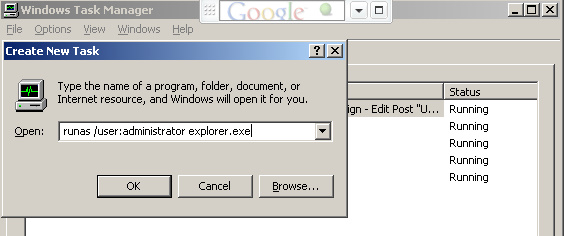
5. Enter "runas /user:administrator explorer.exe" without the quotes.

(Click image to enlarge)

6. Enter administrator password.
7. Voila. Windows Explorers start in administrator mode including the desktop and taskbar.
8. Once you are done playing with Windows Explorer and want your regular user's explorer, close the Task manager that you had opened in step 2.
9. Once again open Task Manager using Ctrl + Shift + Esc. This is to ensure that the Task Manager that opens up is running as administrator and not as regular user that opened up in step 2.
10. Find explorer.exe in Processes tab. Click on "End Process".
11. Go to Applications tab. Click "New task".
12. Enter "runas /user:[regular user] explorer.exe" without the quotes. Make sure you replace [regular user] with the username you are logged in as and know the password of.
13. Enter regular user's password. And Windows Explorer, desktop and taskbar will start as the regular user.

This process can get irritating after a while - especially if you have to enter the password numerous times. Try the following to save password (as long as your administrator password and your regular user password does not change).

runas /user:[regular user] /savecred explorer.exe

If the above does not work or you need more help leave me a comment. I will be more than happy to help.